
Metal
Colour and shine
Pick which metal it is, from 41 metals or your own colour or photo, and set how shiny it is.
Pick the metal
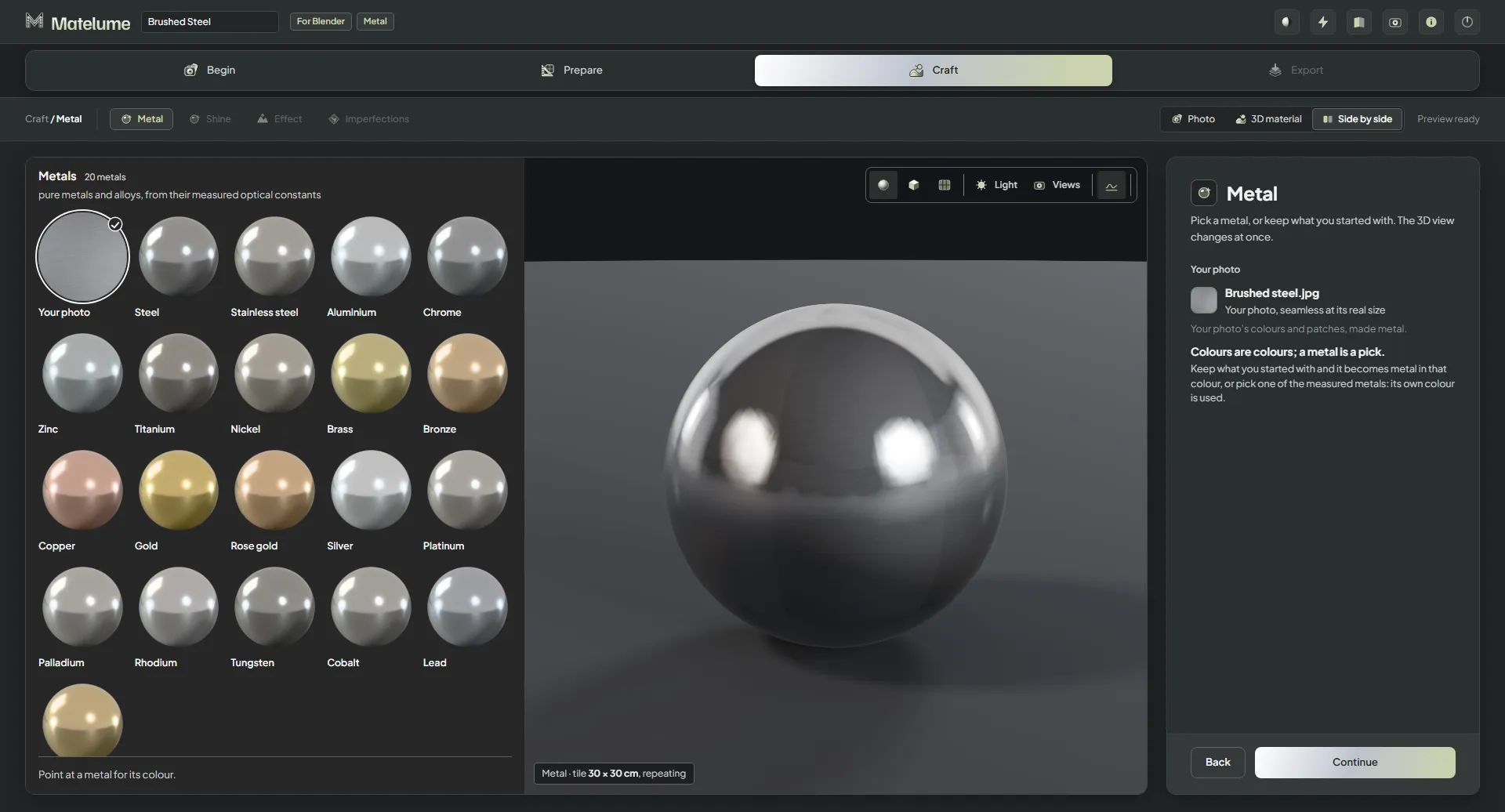
- On the Metal step, click a sphere. The 3D view changes at once.
- To keep what you started with, pick the first sphere, your own colour or photo: it becomes metal in that colour. A metal from the list uses its own colour instead.
- Click Continue.
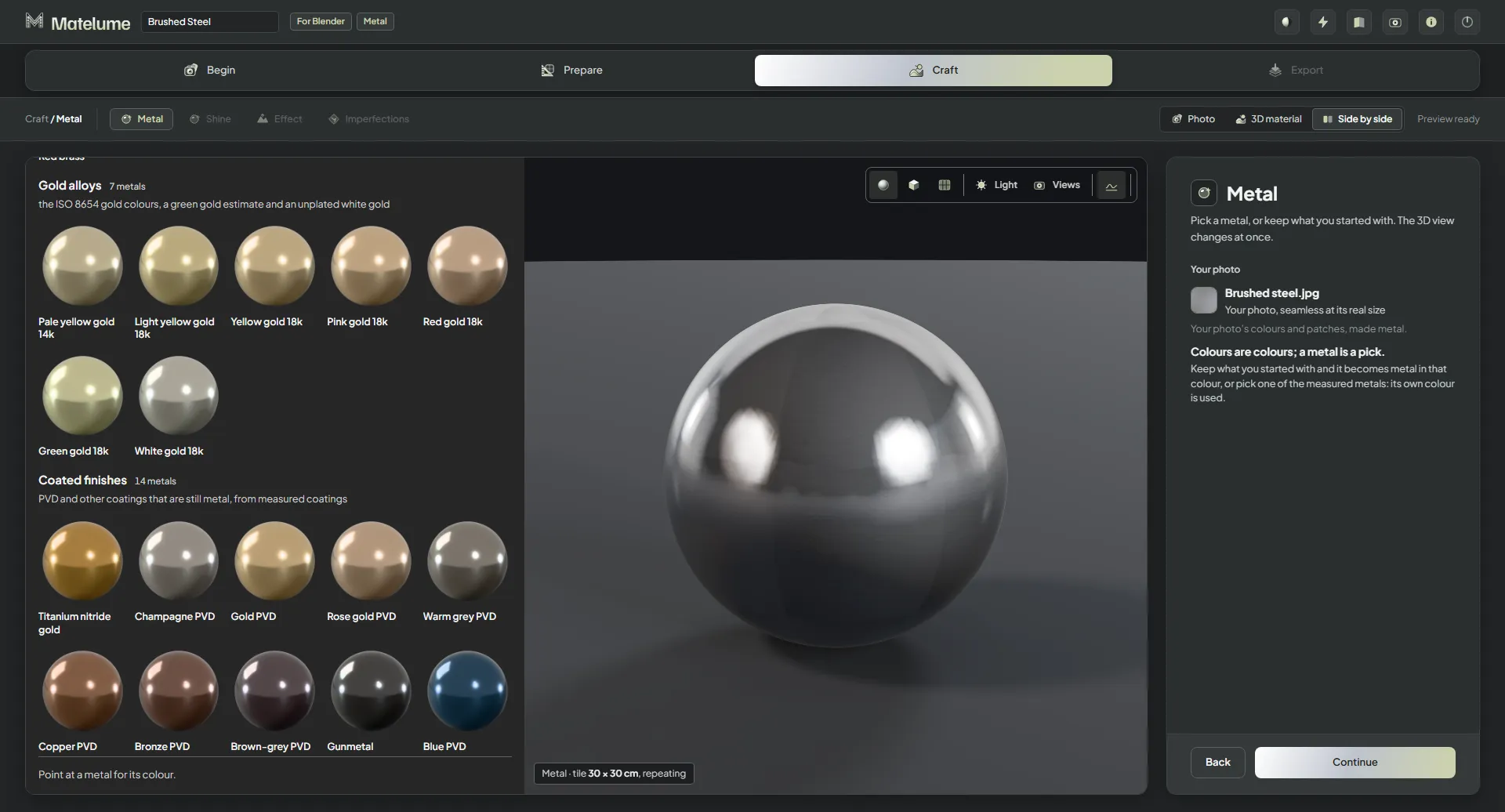
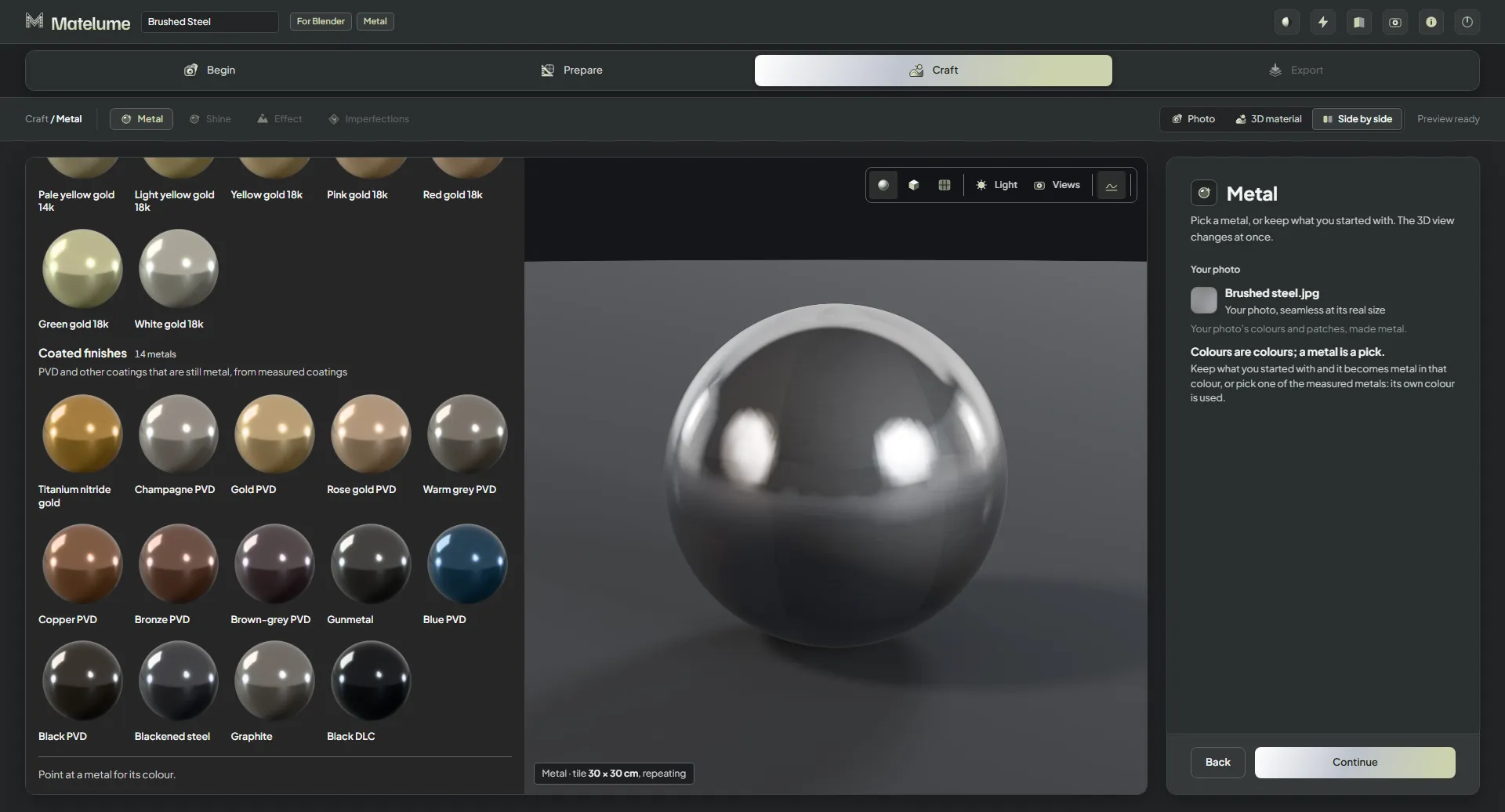
The 41 metals come in three groups:
- Metals (20): pure metals and alloys, such as steel, stainless steel, aluminium, brass, bronze and copper, from their measured optical constants.
- Gold alloys (7): yellow, rose and white golds, from Pale yellow gold 14k to White gold 18k.
- Coated finishes (14): PVD and other coatings that are still metal, such as titanium nitride, black and gunmetal finishes, from measured coatings.
Set the shine
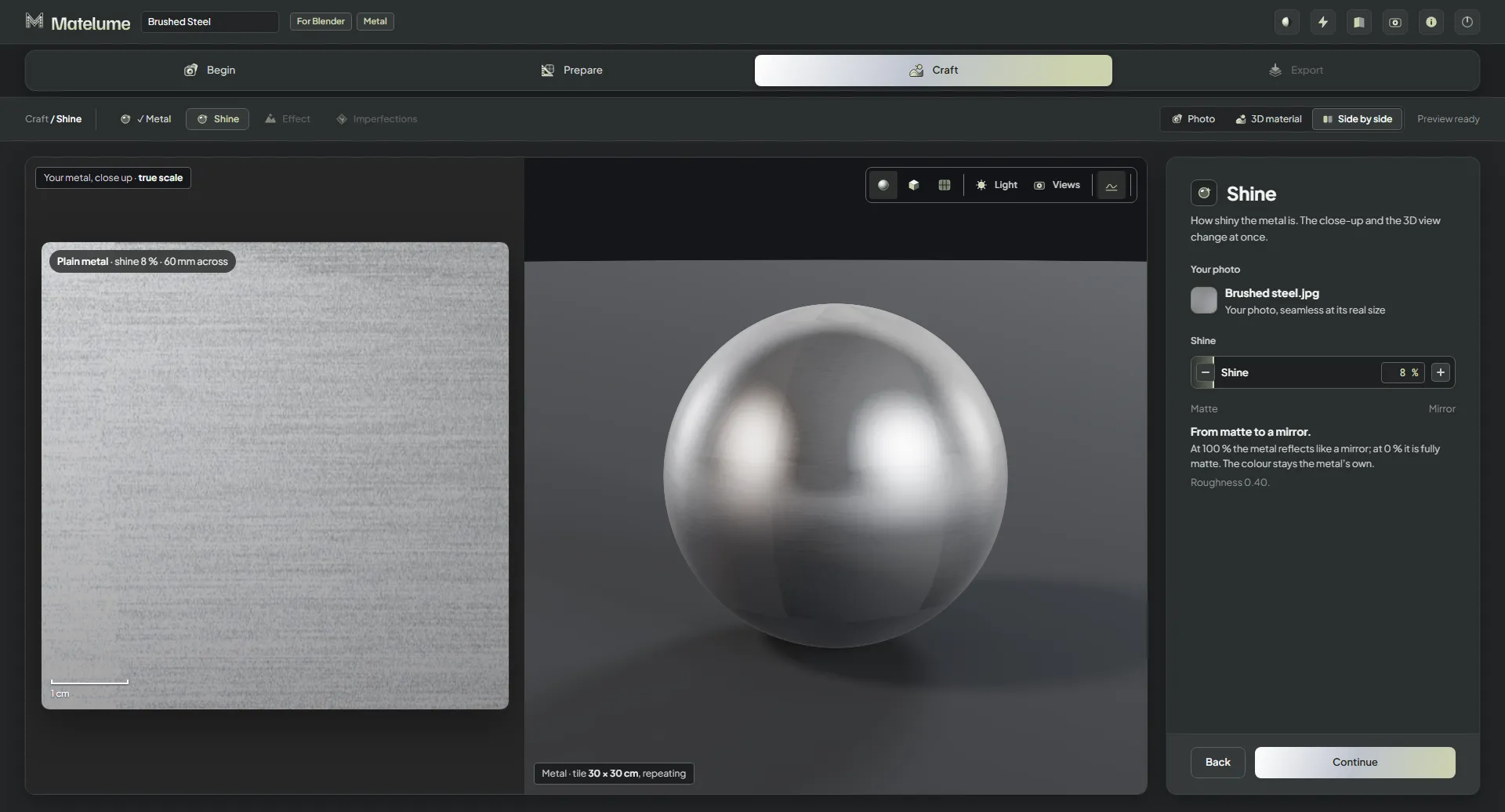
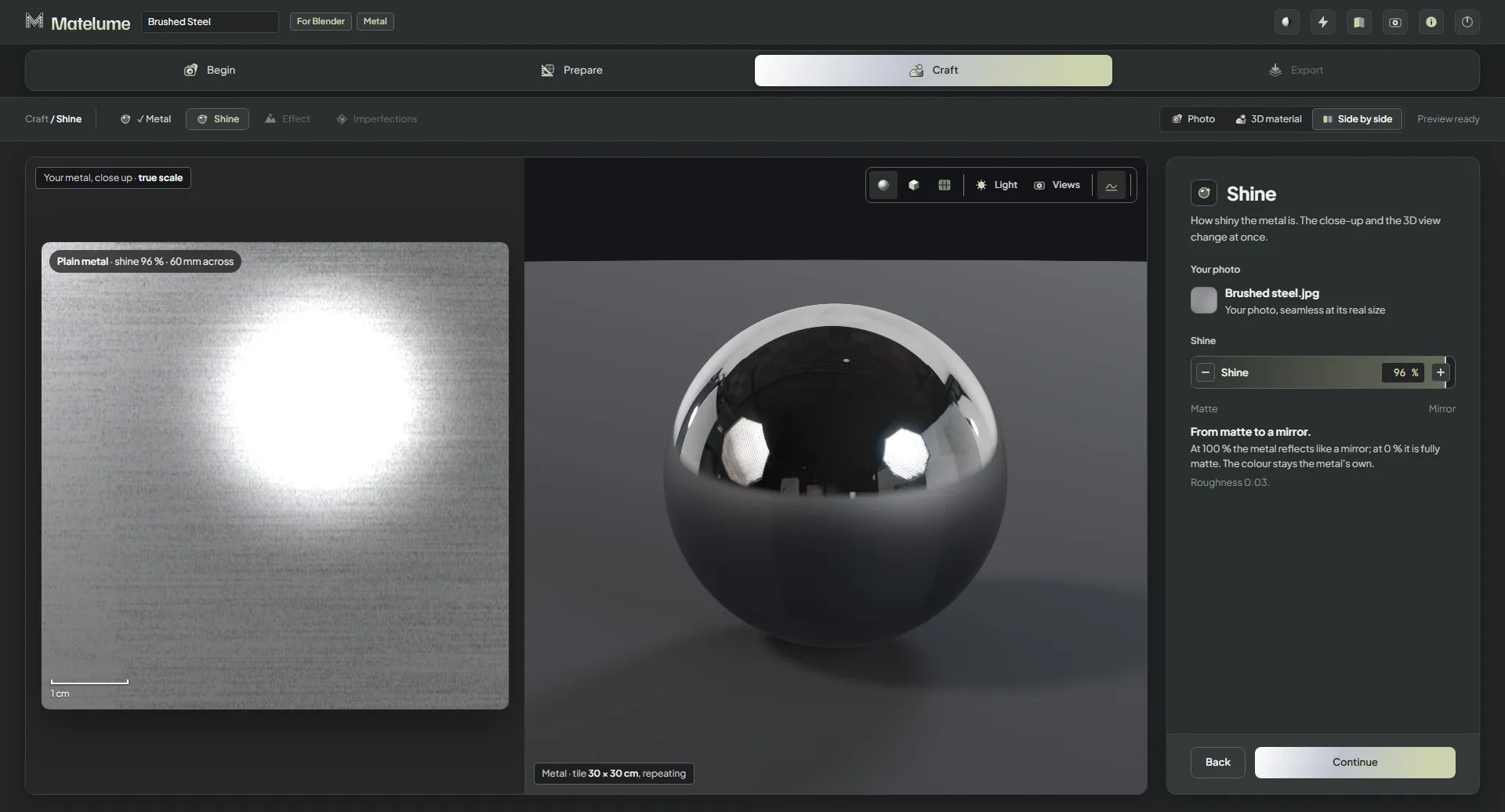
- On the Shine step, drag Shine, or click − and +.
- Watch the close-up and the 3D view: at 100 % the metal reflects like a mirror; at 0 % it is fully matte.
- Click Continue.
Shine never changes the colour: it stays the metal's own.
Metal colours for any material
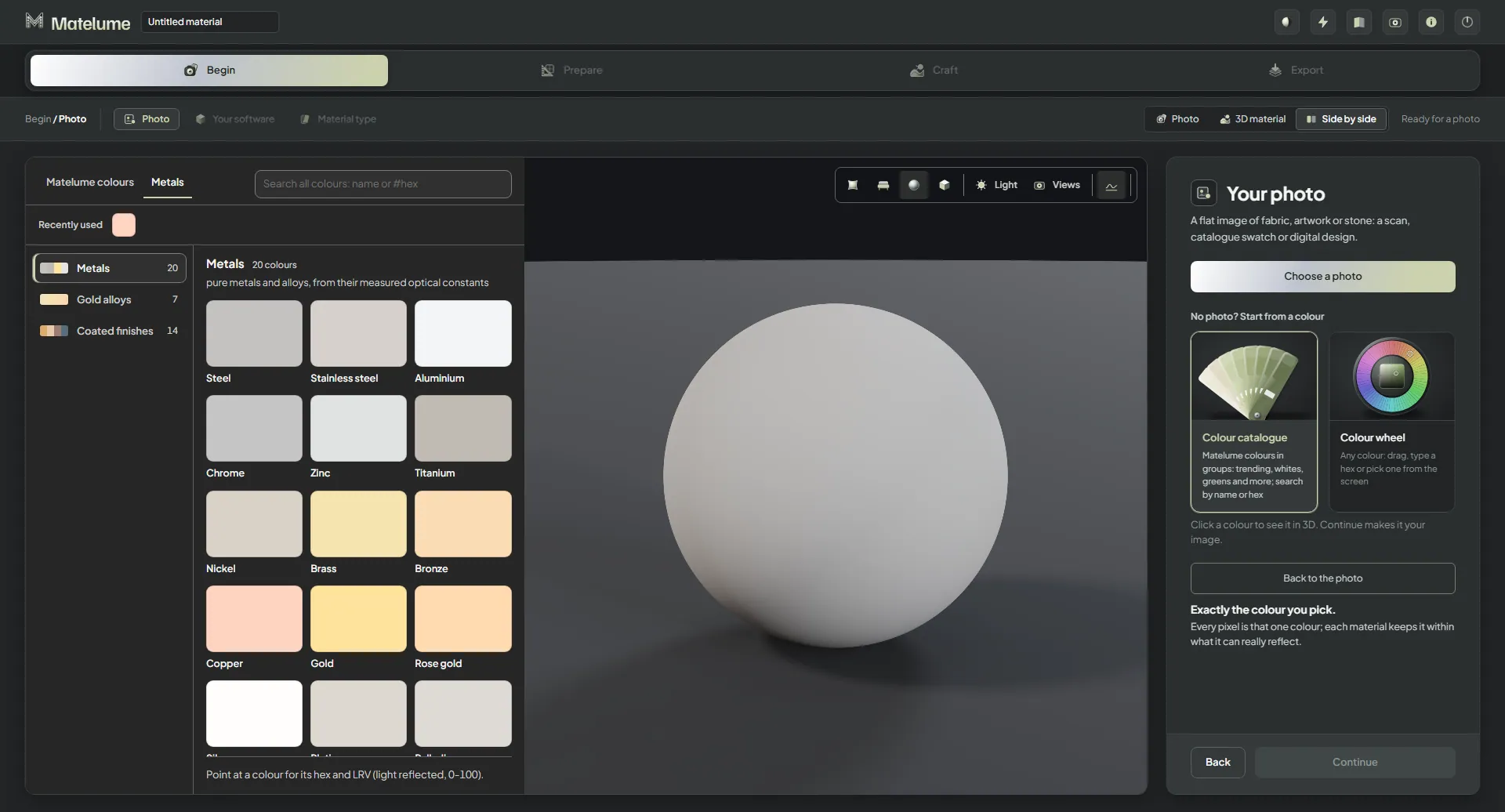
The Colour catalogue on the Photo step has a Metals tab with the same 41 metals as colour chips, in the same three groups. You can start any material from them, not only a metal.