
The Studio
The 3D view
Check your material at its real size, choose an object and a distance view, and render through Send to Blender.
Matelume Guide. Upcoming features are marked separately. Current release: Matelume 2.0 · 30 October 2026
A live view at the right distance
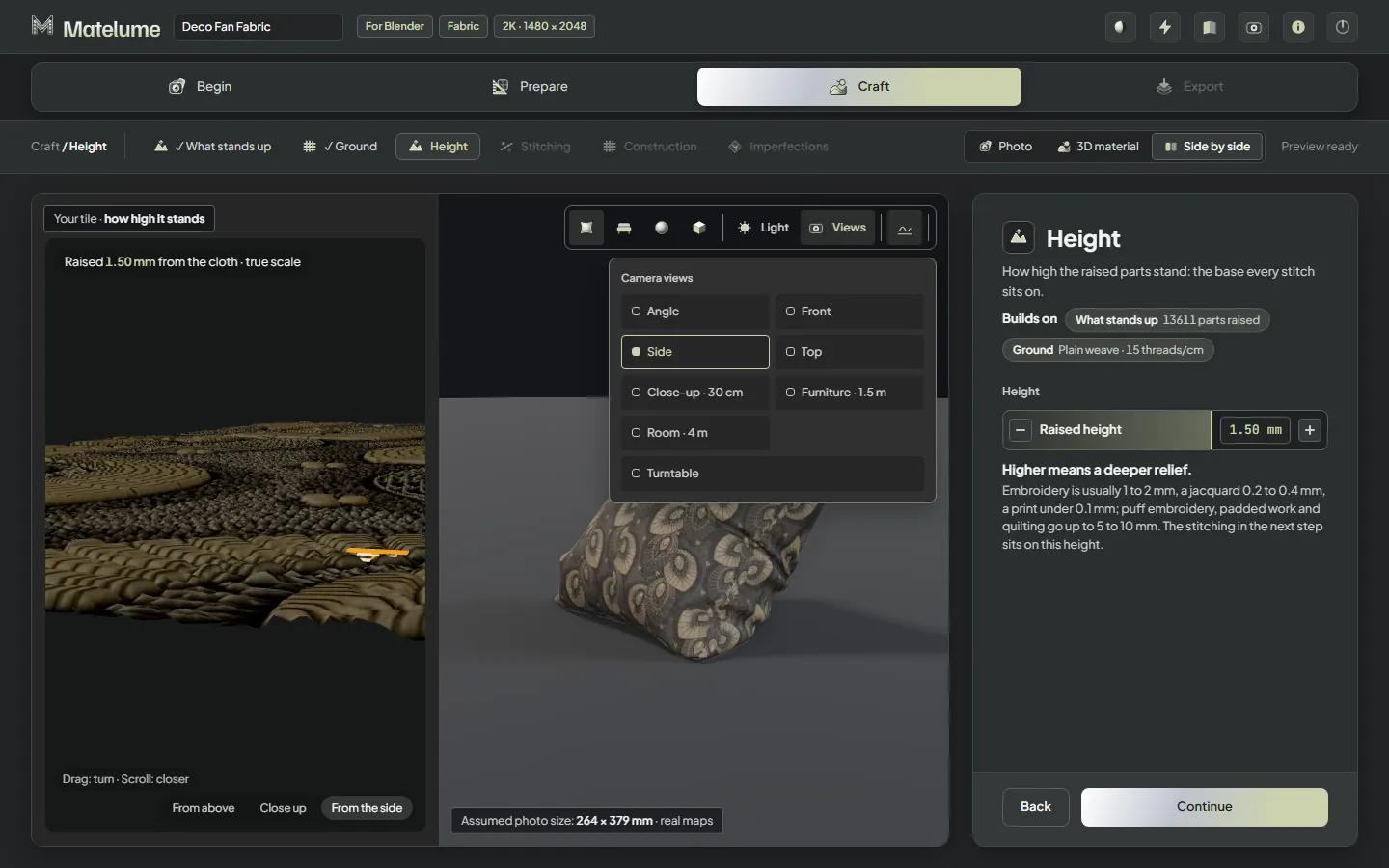
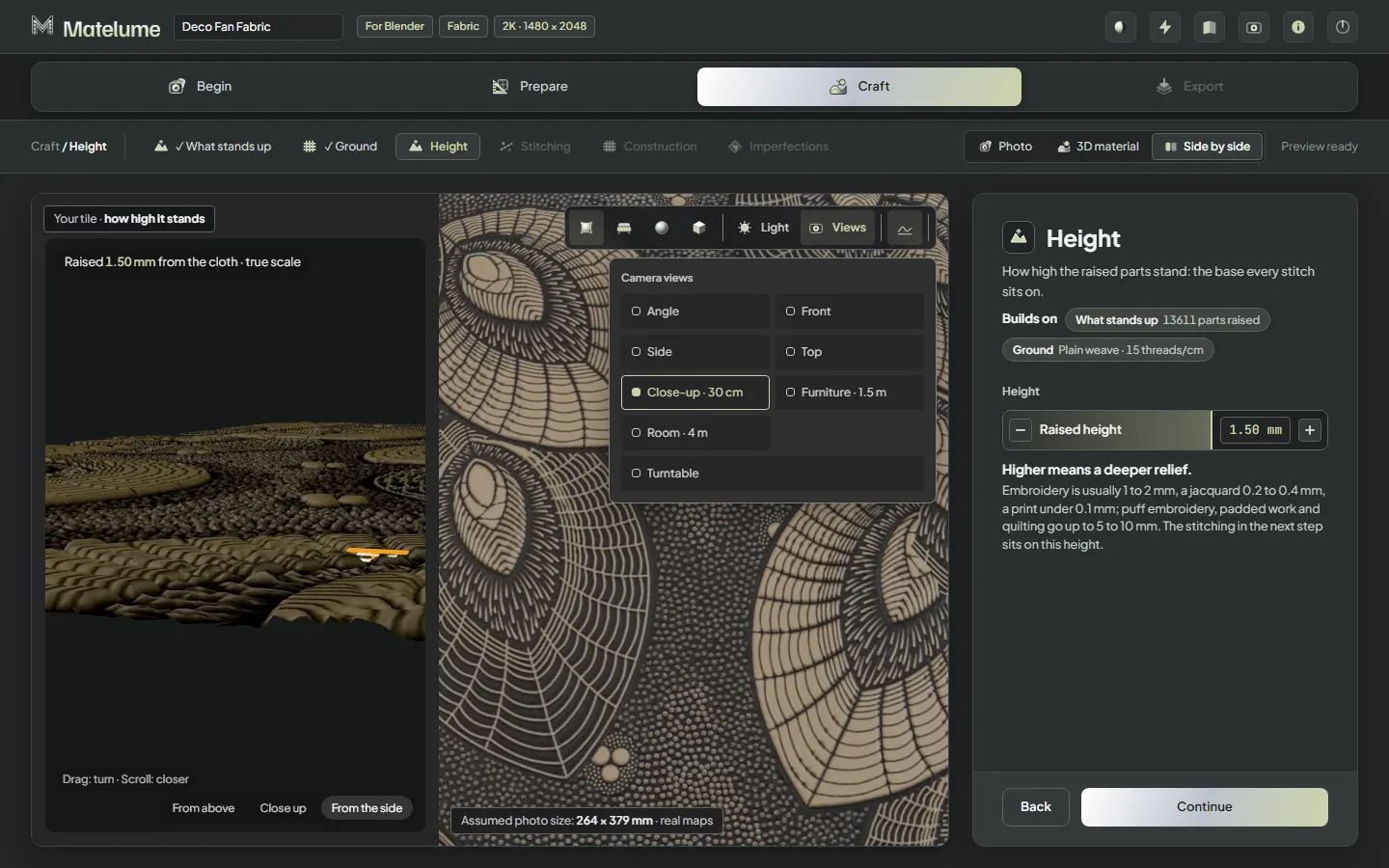
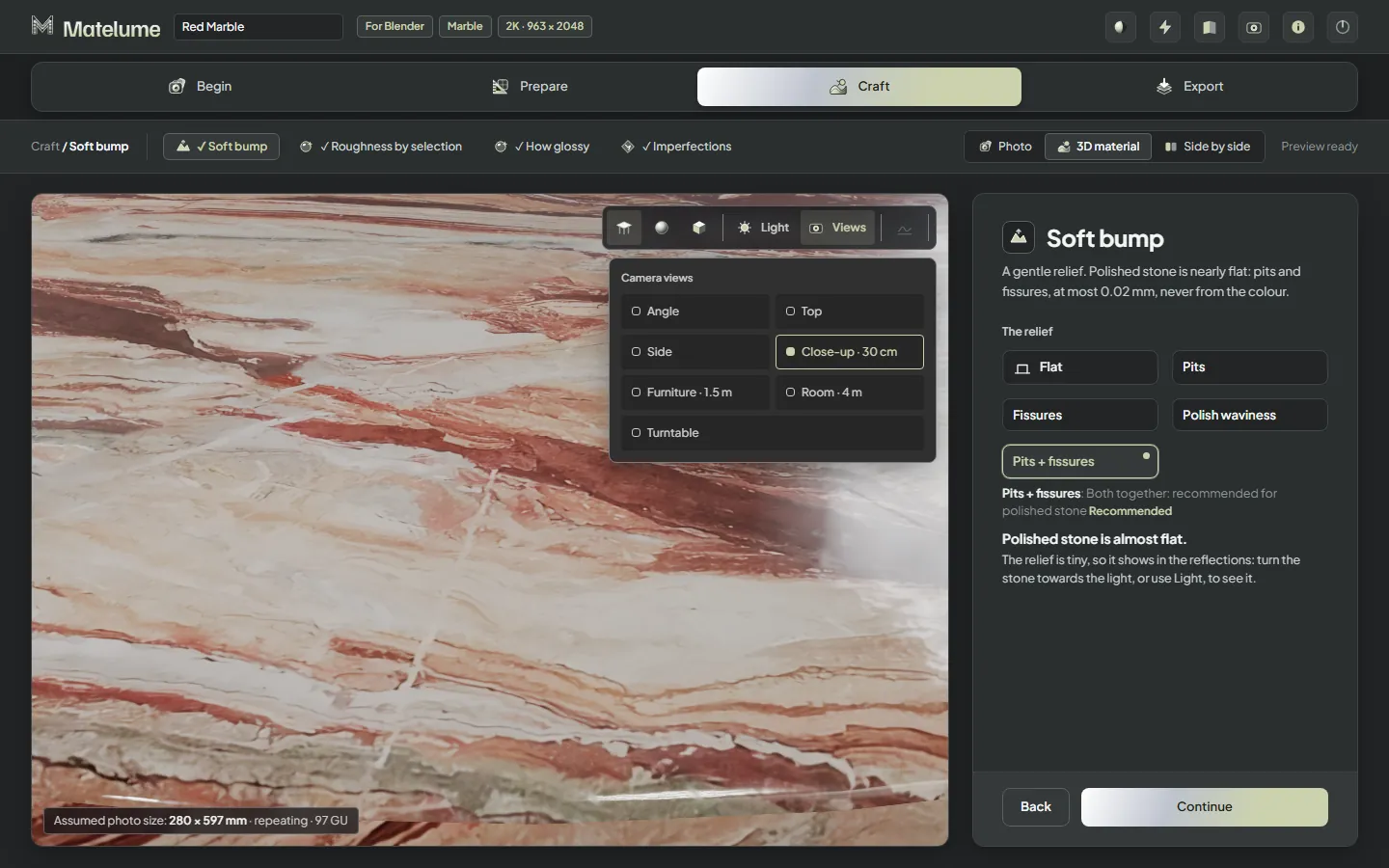
The view begins on a sphere, then each material brings its usual object. Use Close-up at 30 cm, Furniture at 1.5 m or Room at 4 m to judge the detail. These views affect only the preview; exported maps stay the same. The in-app Cycles render has been removed: use Send to Blender to render the material. If the graphics driver resets, the 3D view pauses and comes back; maps and exports are unaffected.
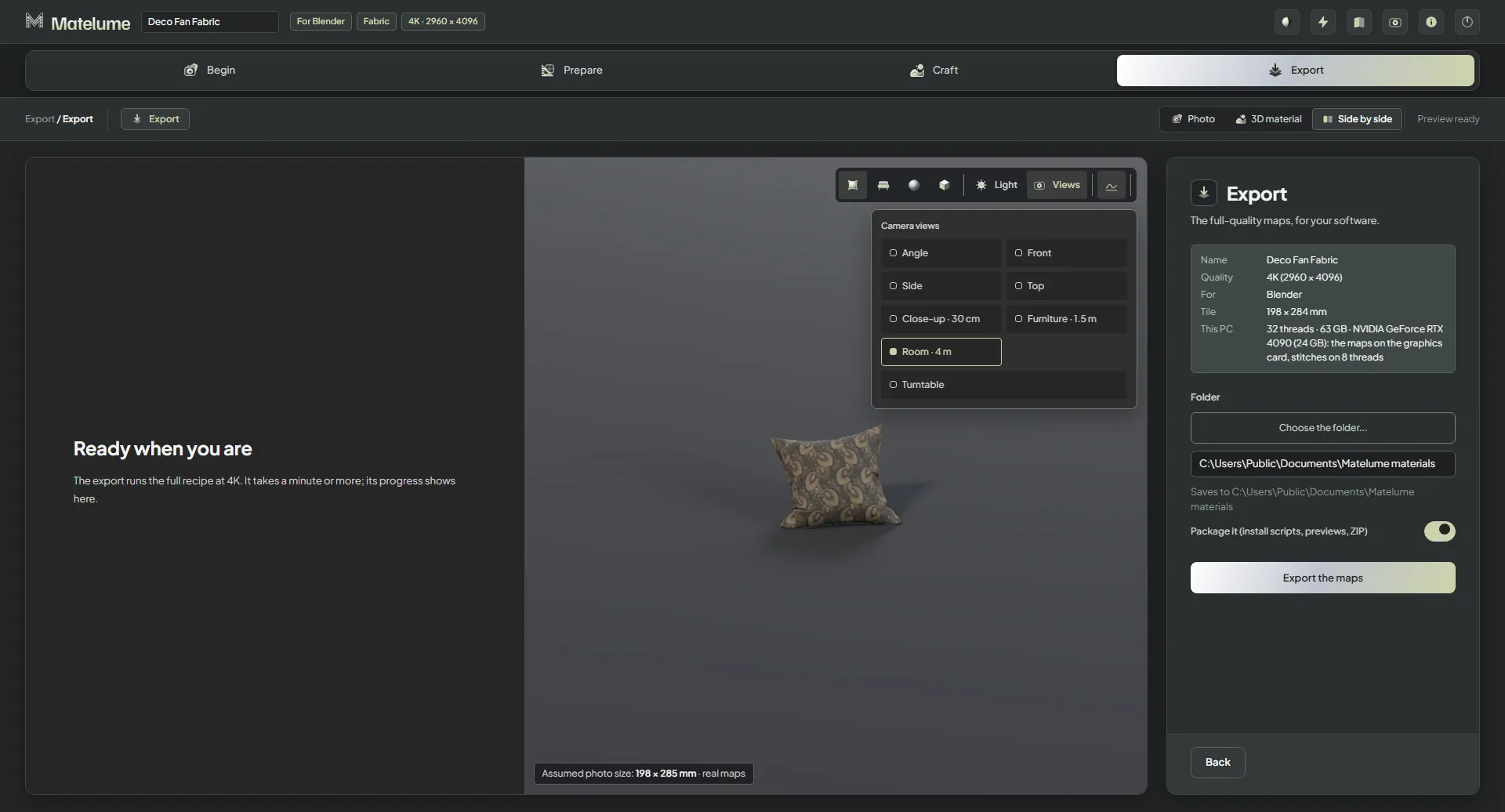
The 3D view shows your material on a real object at its real size, beside the picture, in every step. It follows you through the steps: it shows what the step you're on builds on, and nothing from later steps. Early on you see your image's colours on the object. In the craft steps, a quick preview comes first, then the real maps a moment after you stop changing things.
A chip at the bottom left of the view says what you're looking at, for example "Assumed photo size: 300 × 212 mm · real maps". The view's controls sit in a bar at its top right.
Move around
- Drag to turn around the object.
- Scroll to zoom in and out.
- Right-drag to move the view.
The view keeps your angle when your material changes.
Pick the object
Wood has its own real-size veneer workflow. See Wood overview for its surface, finish and preview examples.
The first buttons in the bar pick the object; hover over one to see its name.
- Fabric: Cushion, Sphere and Flat swatch. The cushion takes the size you set in the Scale step.
- Marble: Marble table (the default), Sphere and Flat slab.
- Wall art: Framed artwork, hanging on a wall at its real size.
Use the cushion to inspect fabric at its real size, and the sphere or flat swatch to compare the surface.
Light
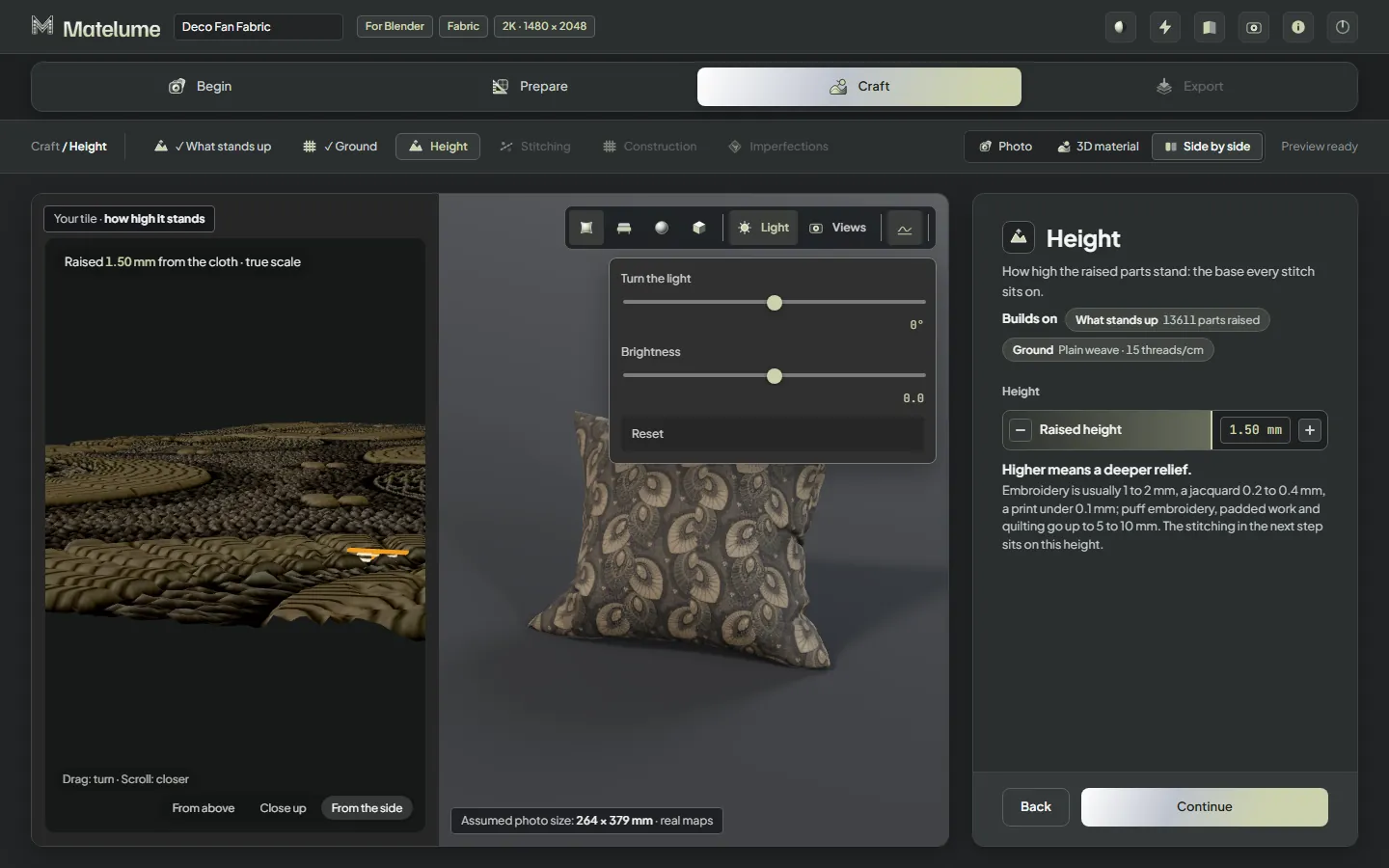
Click Light to open the light controls:
- Turn the light: turns the studio lighting around the object, from −180° to 180°. Turn it until the light grazes the surface to bring out stitches, weave and relief.
- Brightness: the exposure of the whole view, like a camera's, from −1.5 to +1.5 stops.
- Reset: back to the usual light.
The light is only for looking. It never changes your maps or your export. Matelume remembers your setting on this PC.
Real relief
The relief button shows real displacement on the object. Each click moves on: on (the default), then high detail, then off, which shows the normal map alone. A short message names each setting. Real relief isn't available on the marble table; switch to another object, such as the sphere. Wall art always shows its relief.
In Matelume 1.0.7 and earlier
This describes the earlier preview. In Matelume 2.0, use the live 3D view and Send to Blender for rendering.
Path tracing and Denoise
Path tracing is off by default. Switch it on and stop moving: the view renders like Cycles, with traced light and soft shadows. A status line in the view counts the samples up to 400 and shows the time left, then reads "Path tracing done · 400 samples · denoised". Moving the view stops it; it starts again when you stop.
Denoise appears with Path tracing and is on by default. It removes the grain of the first samples. Switch it off to see the raw samples.
If your graphics card can't path trace, the view says "Path tracing is not available on this graphics card" and keeps the normal view.
With and without a construction
In the Construction step, press and hold Hold to see it without velvet; the button names the fabric you picked, such as velvet or silk. The 3D view shows your material without the construction until you let go.
Your exported material
When an export finishes, the 3D view loads the exported maps themselves, at full quality: "Your final material", exactly as exported.
Tip: Stop moving and the view refines itself in about a second, with cleaner edges and softer, more natural light. This refined view also shows the real gloss of your maps.
Explore the 3D view
Actual app screens showing the choices along the way. Open any image for a closer look.