

The Studio
Prepare: quality, scale and seamless
Choose the size of your maps, set how big your photo is in real life, and make one tile that repeats with no visible join.
Current release: Matelume 2.0 · 30 October 2026
Set the foundation in 2.0
AI enlargement starts as soon as the photo arrives, and its progress line tells you what is happening. Set the real size before judging the surface. Wall paint offers A close-up, A sample board, A wall section and A whole wall, or a typed width. Wood can use a single veneer sheet without a seamless join.
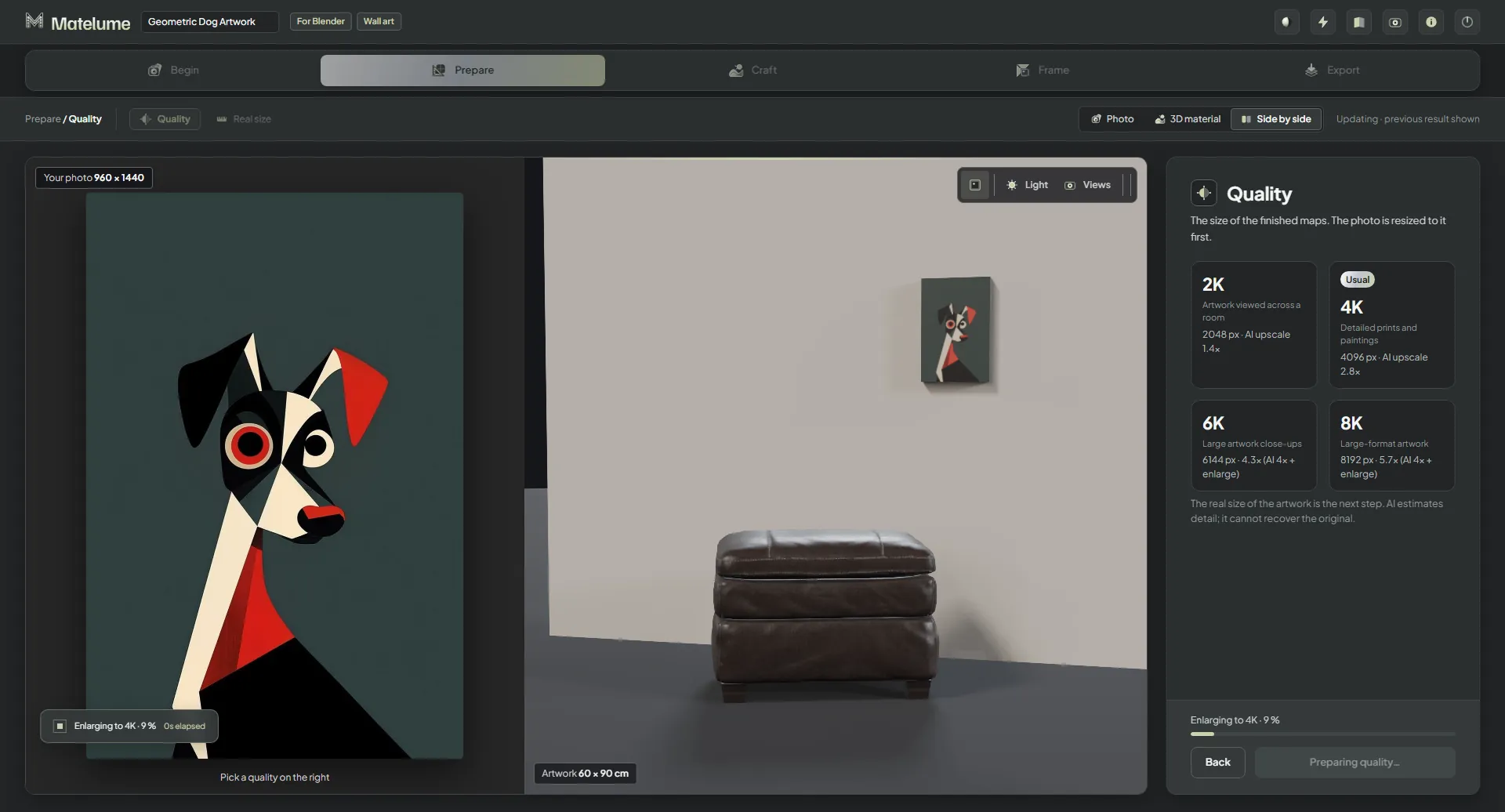
Quality
Pick the size of the finished maps. For fabric, the cards read:
- 2K (2048 px): furniture seen from a few metres.
- 4K (4096 px), marked Usual: close-ups of cushions and chairs.
- 6K (6144 px): hero close-ups.
- 8K (8192 px): big prints, extreme close-ups.
Wall art and marble show their own descriptions. The size is the long side of the maps; the other side follows your photo.
Each card also says what will happen to your photo: "scaled down", "as it is", or "AI upscale" and how many times. Past 4×, the AI enlarges up to 4× and the rest is a plain enlargement. Matelume brings your photo to this size first, so every later step works at the final quality. The AI step runs once. It estimates detail and can't recover detail the photo doesn't have, so a bigger photo or a lower quality gives a sharper material.
While it works, Continue reads Preparing quality… and the 3D view stays live. When it's done, compare the two pictures: drag across the picture to move the split, and click a spot to see it close, Original, enlarged beside your quality at 1:1.
During the 14-day trial, full-size exports are available without a watermark. See Trial and plans.
Scale
Matelume can't read real size from a photo, so you set it here. Every later step is made at this size, and the export carries it.
For fabric, Photos on the cushion asks how many photos make one cushion:
- The whole cushion: your photo is the cushion front.
- 2 × 2, 3 × 3 or 4 × 4: 4, 9 or 16 photos make the cushion.
- A size of my own: for curtains, sofas and anything else. Set the Width with the slider, from 2 cm to 3 m, or type it next to Or type it, in cm:.
With a cushion pick, choose the Cushion size: 40, 45, 50 or 60 cm. 45 cm is the default.
The height always follows your photo's proportions and is never stretched. The panel shows the size of one tile, and a 10 cm ruler sits on the picture. The cushion in the 3D view takes the size you set.
The later steps show the whole cushion, for example all 2 × 2 tiles, so you judge the design at its real scale. The export is still one tile at its real size; your program repeats it.
Marble sets its width the same way, with quick picks from a small sample to a wide slab. Wall art has its own Real size step; see Wall art.
Seamless
The finished map is one tile that repeats, and Seamless makes that tile join without a visible line. Pick a tool:
- Keep the image as it is: the photo already repeats; use it untouched.
- Best join · true size: cuts the join along the least visible path. The design stays the size you set and the repeat gets a little smaller. Best for flowing lines and large shapes.
- Best join · fit the size: the same cut, but the repeat is exactly the width you set. The design grows a little to fill it, evenly, never stretched.
- Fill the join: fills the band where the tiles meet with pieces of your photo.
- Rebuild with whole motifs: places the design's whole motifs again, so none is cut at the edge.
Matelume reads your design and marks the tool that suits it Recommended; that tool starts selected. When no tool is marked, Best join · true size starts selected.
The tools have their own settings:
- Join band: how wide the area is where the tool works, 6 to 30 %. For both Best join sizes it's the Overlap searched for the cut; for Fill the join, the Width of the filled band.
- Fill (Fill the join only): Matched fill, the default, matches tones and follows the design. Patch fill lays pieces one after another and can suit some flowing stripes and small checks.
- Fill it again, differently or Another arrangement: a new variation from the same tool.
Check the joins
The picture shows your tile repeated 2 × 2, or as your cushion's tiles, with Matelume's join check: "join clean" or "a join is visible". The cushion in the 3D view shows the tile repeating at its real size.
- Look where four tiles meet.
- In the 3D view, turn the object and the light to catch any line.
- Not sure which tool is best? Click Compare the tools, 2 × 2 to see each tool repeated 2 × 2, side by side. Both Best join sizes use the same cut, so it appears once.
With The whole cushion, the join falls at the cushion's edge, and the maps are this one tile.
Marble has its own Seamless step, with Best join or No seamless and a Slab kept slider; see Marble. Wall art is never tiled.
A single-colour start uses these same steps. Quality enlarges the colour exactly without AI upscaling, since there is no detail to sharpen.